laravel-google-sheet-i18n
Setting up Google Sheets API
To use this package, you need a Google Cloud Project with the Sheets API enabled and a Service Account.
1. Create a Google Cloud Project
- Go to the Google Cloud Console.
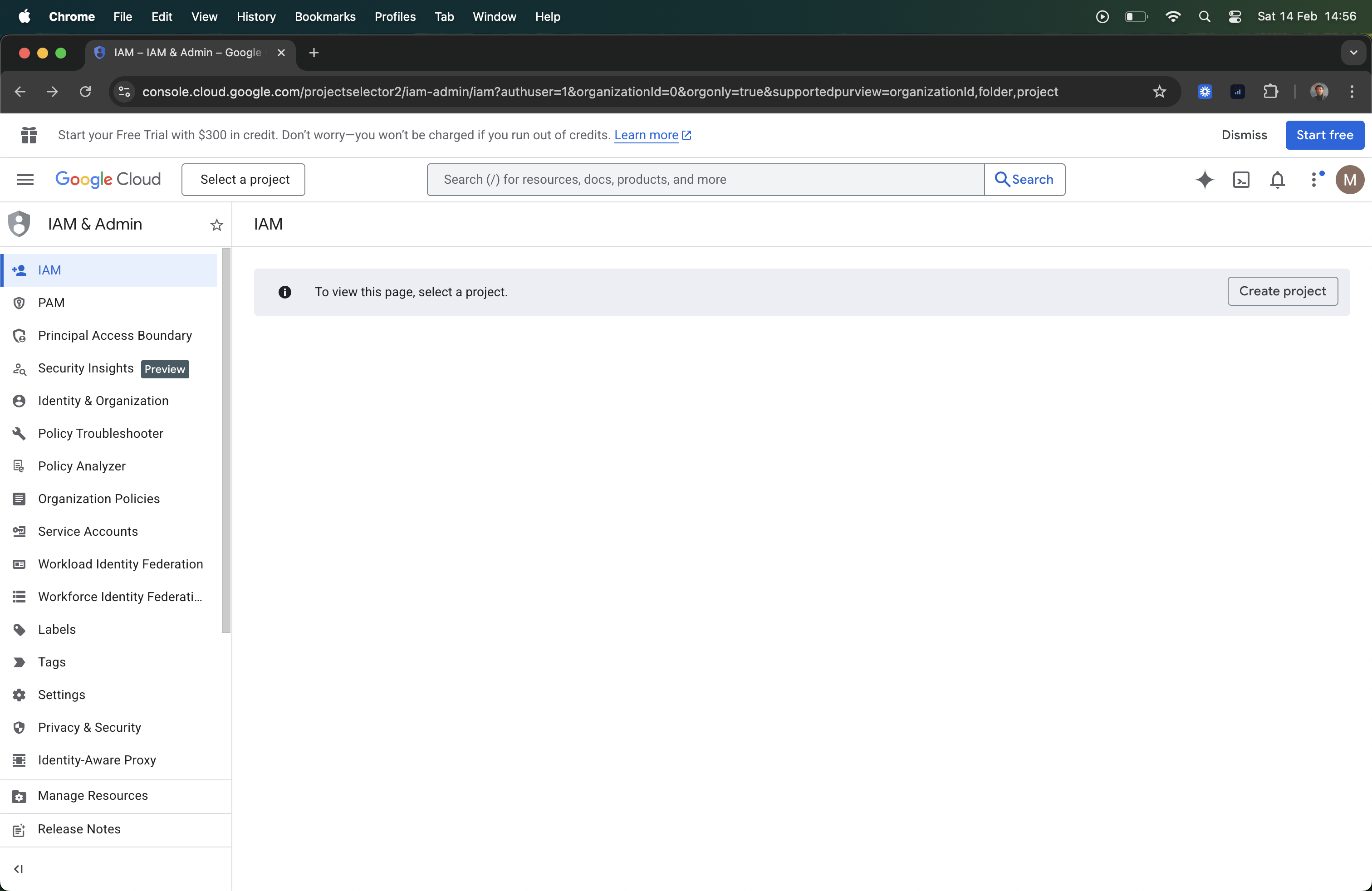
- Create a new project (e.g.,
laravel-i18n).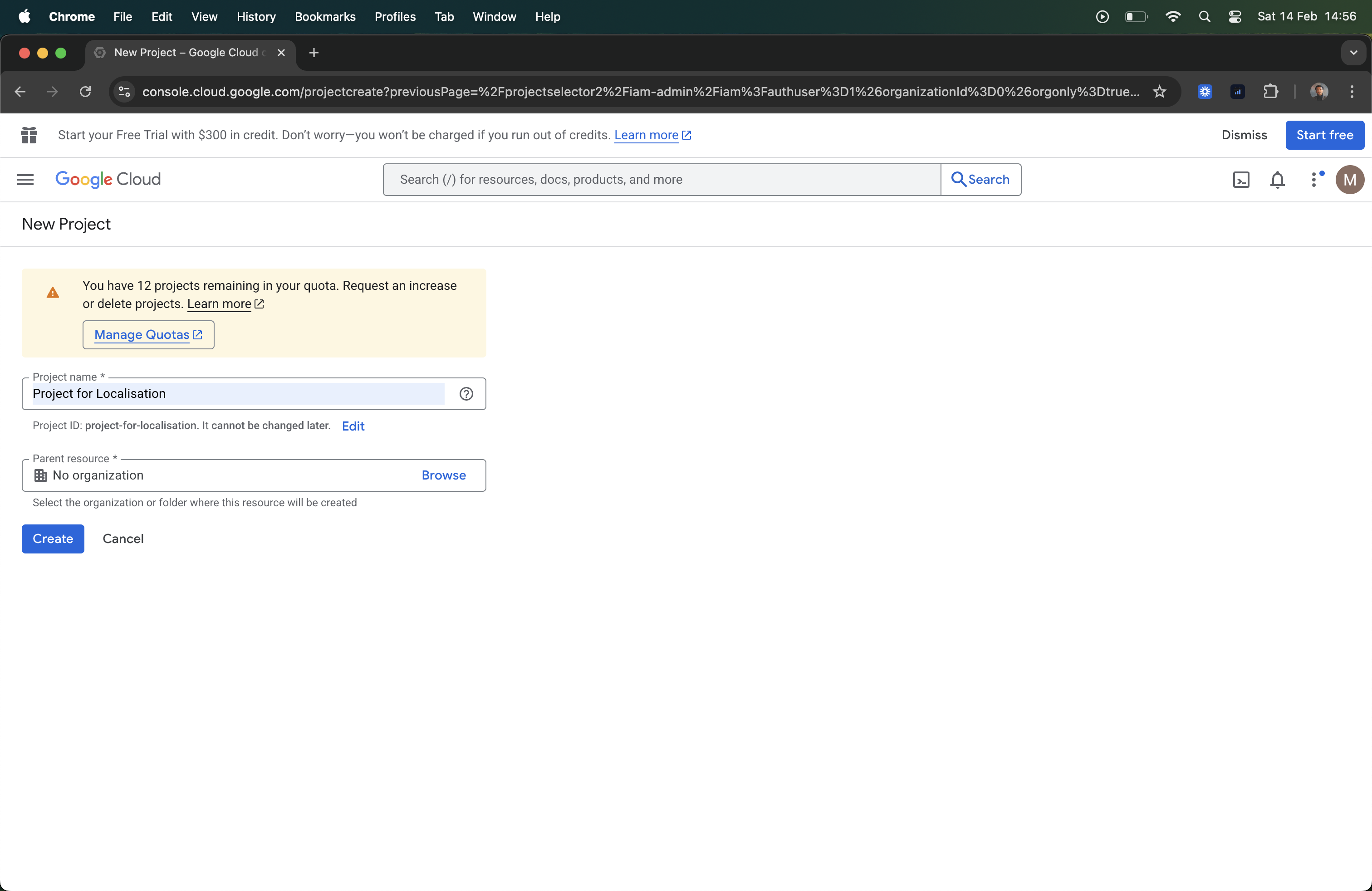
2. Enable Google Sheets API
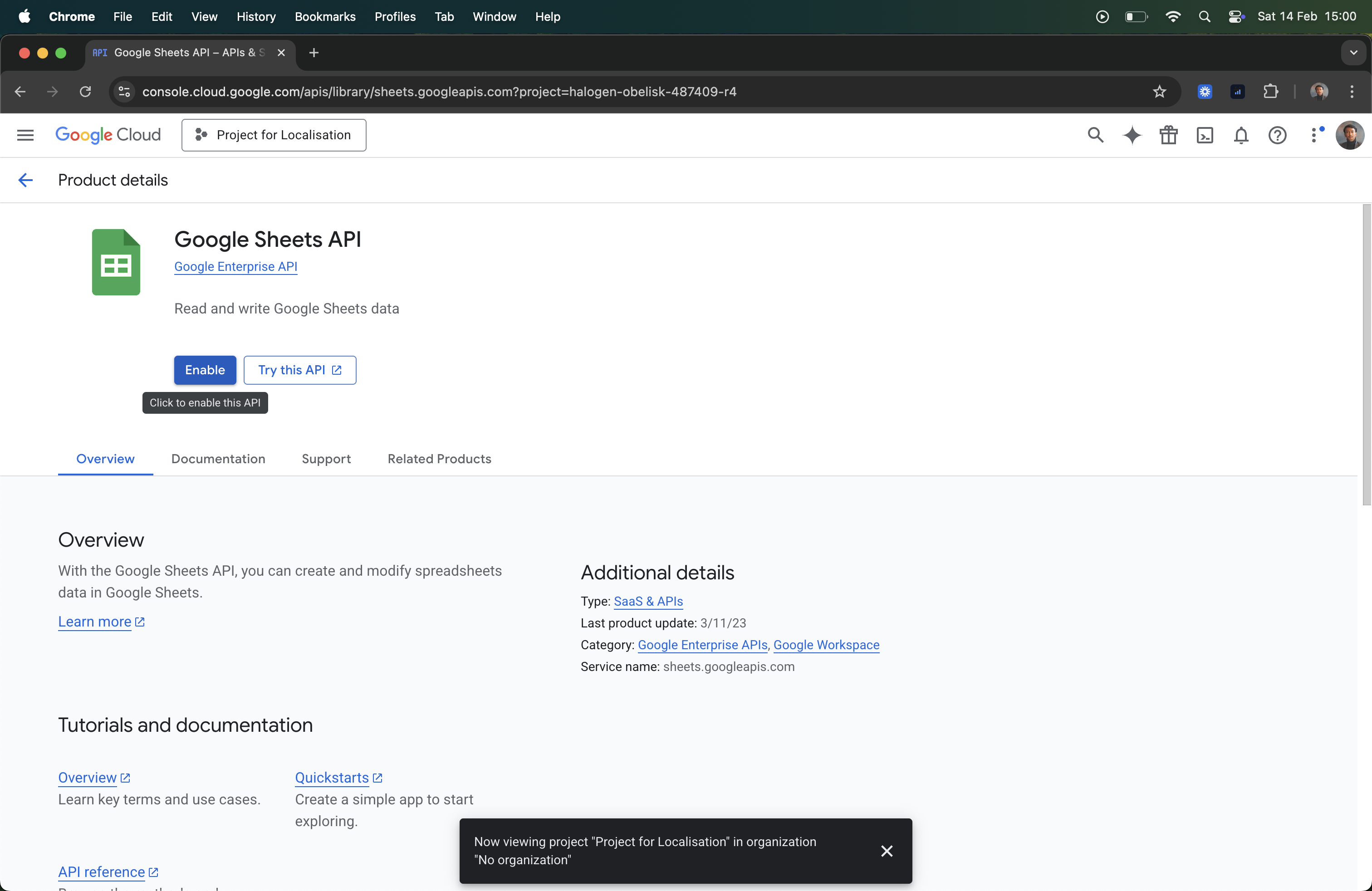
- In the sidebar, go to APIs & Services > Library.
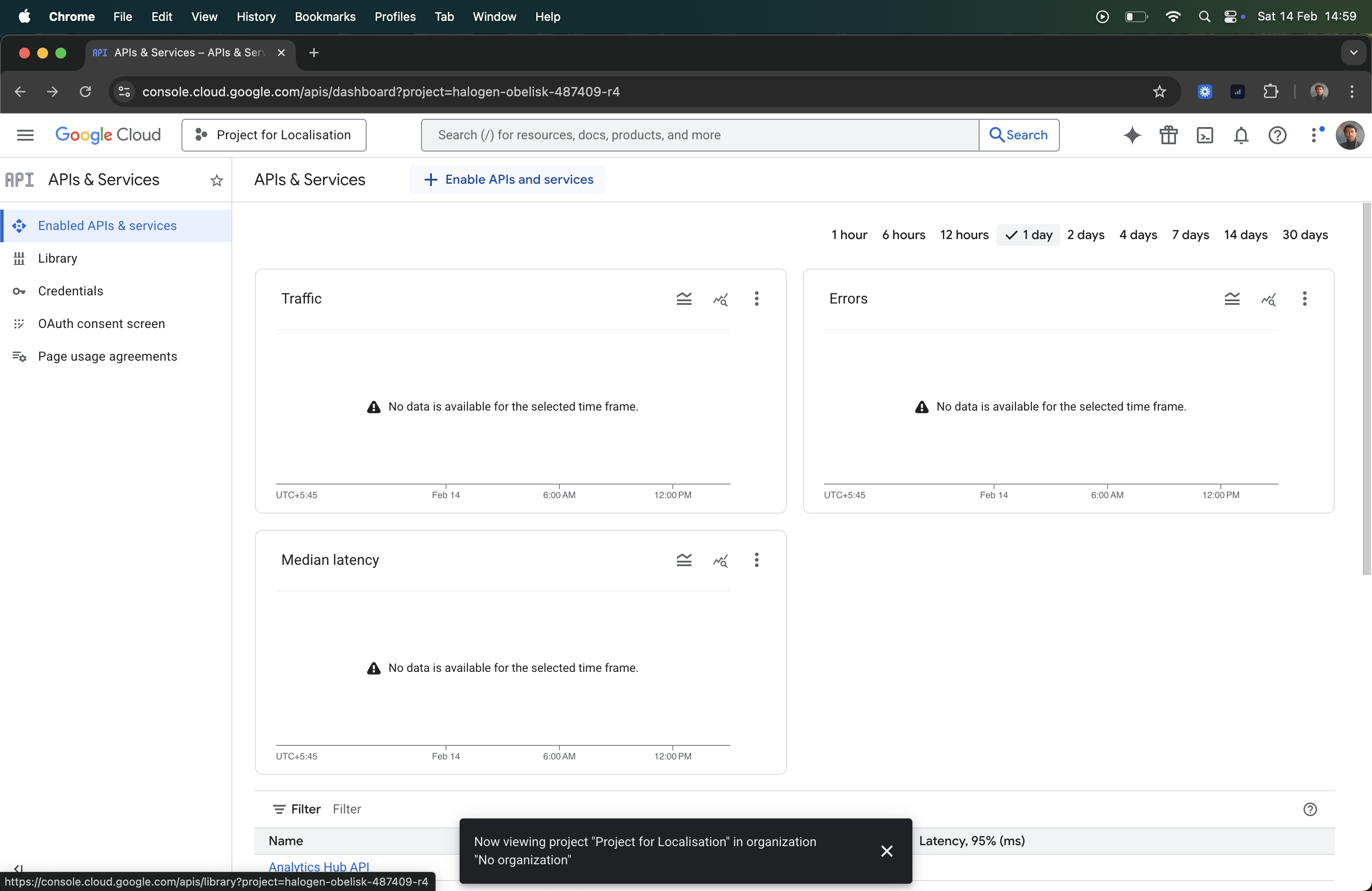
- Search for “Google Sheets API”.
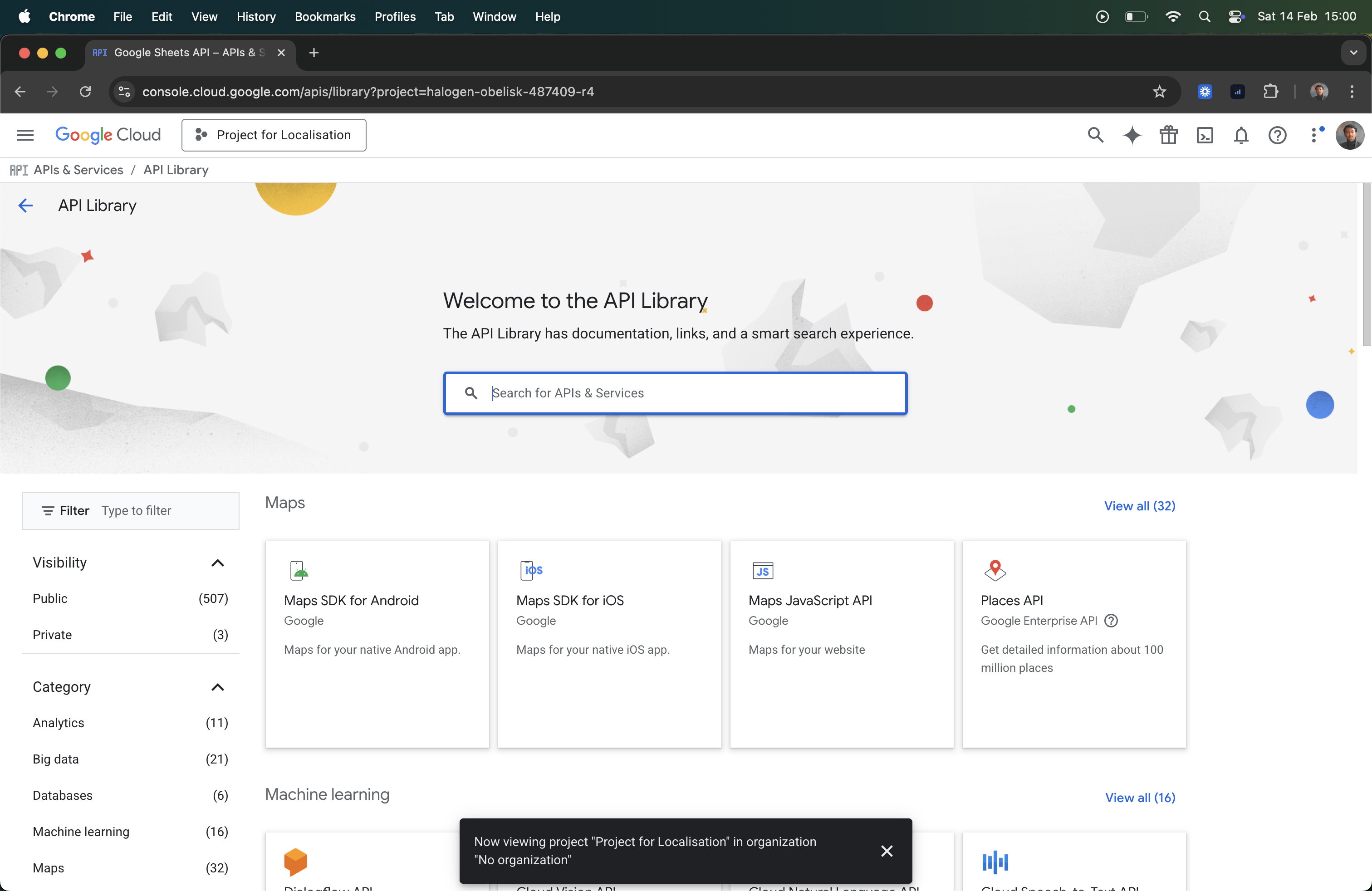
- Click Enable.
3. Create a Service Account
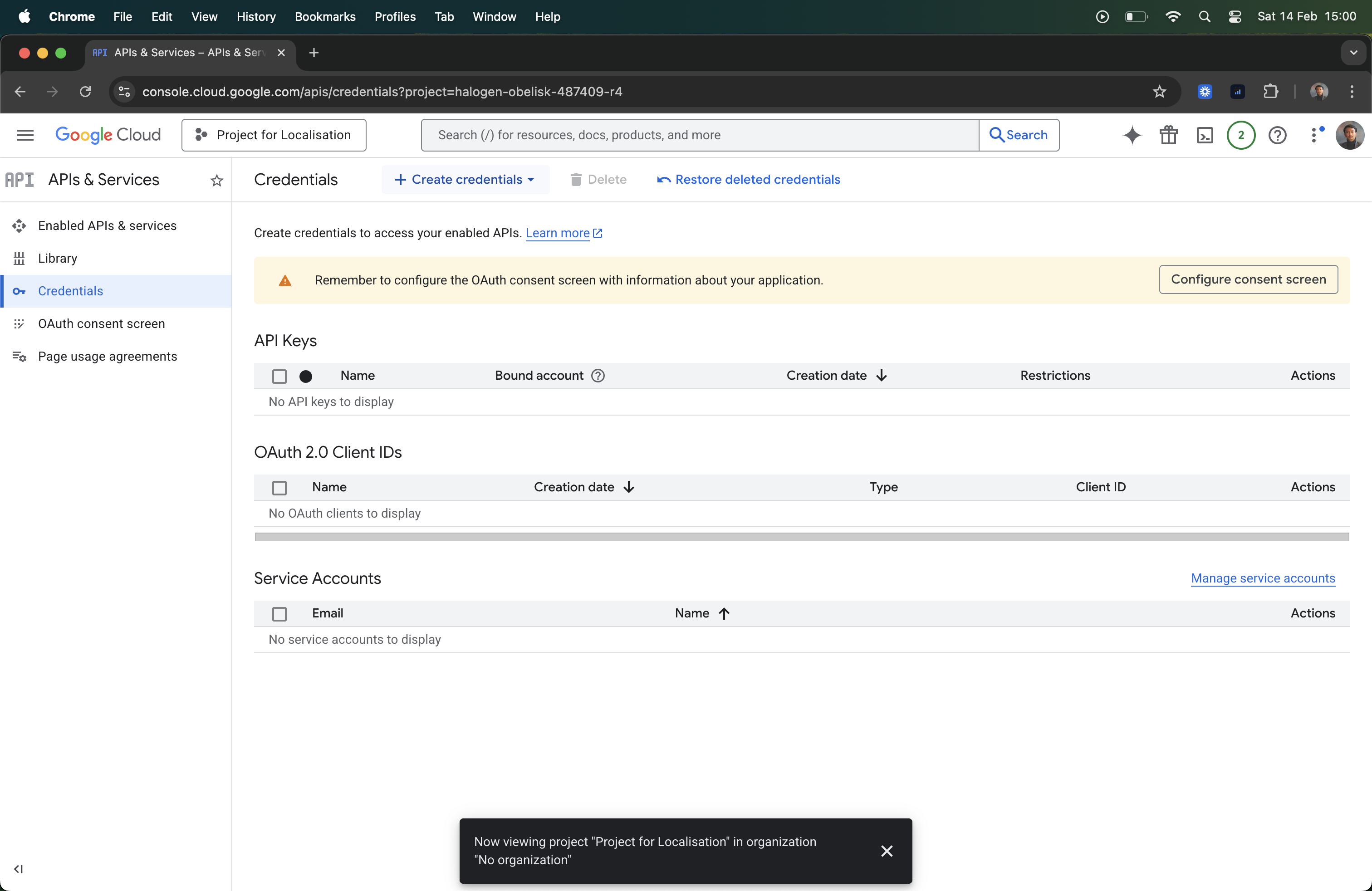
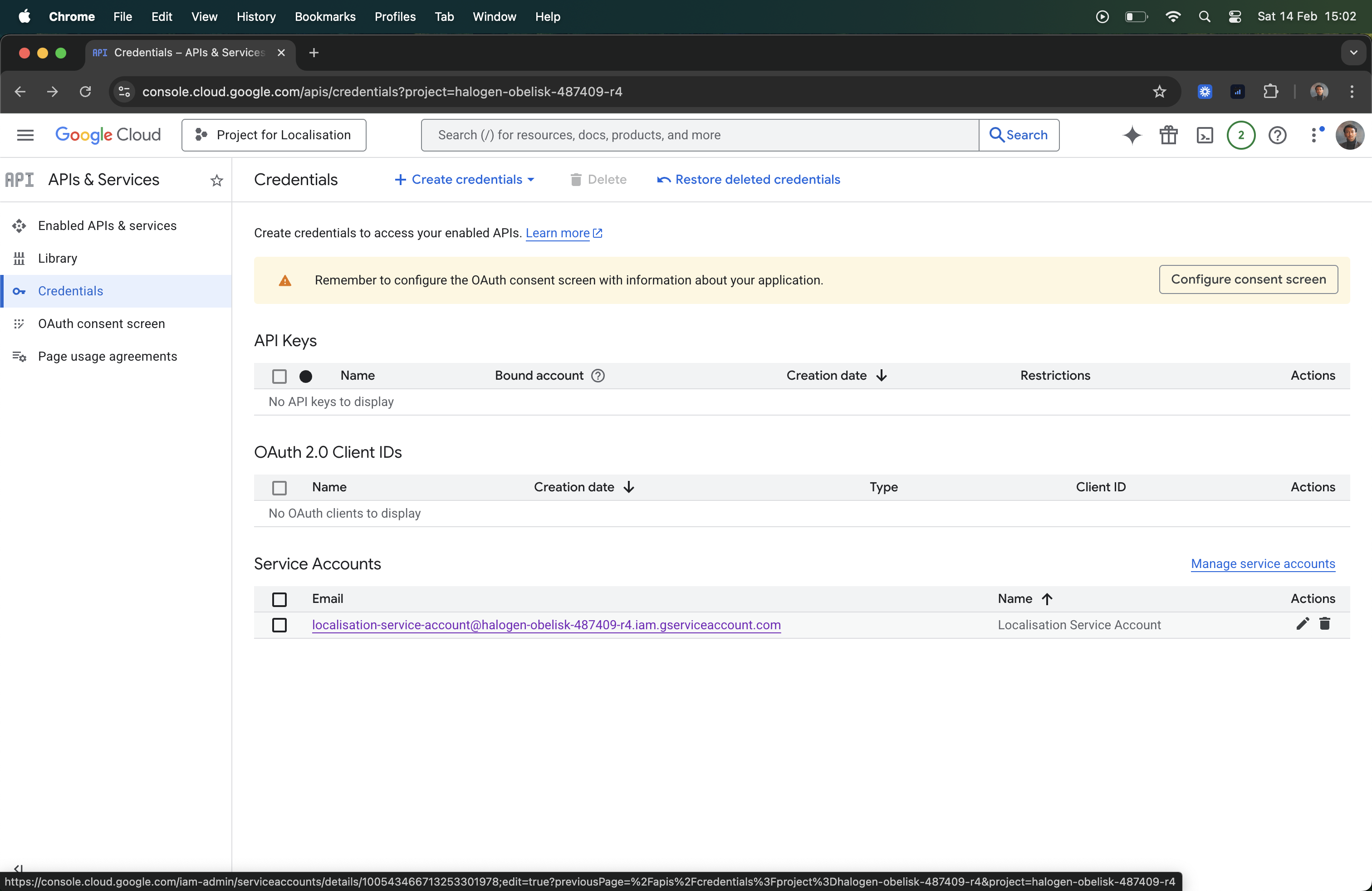
- Go to APIs & Services > Credentials.
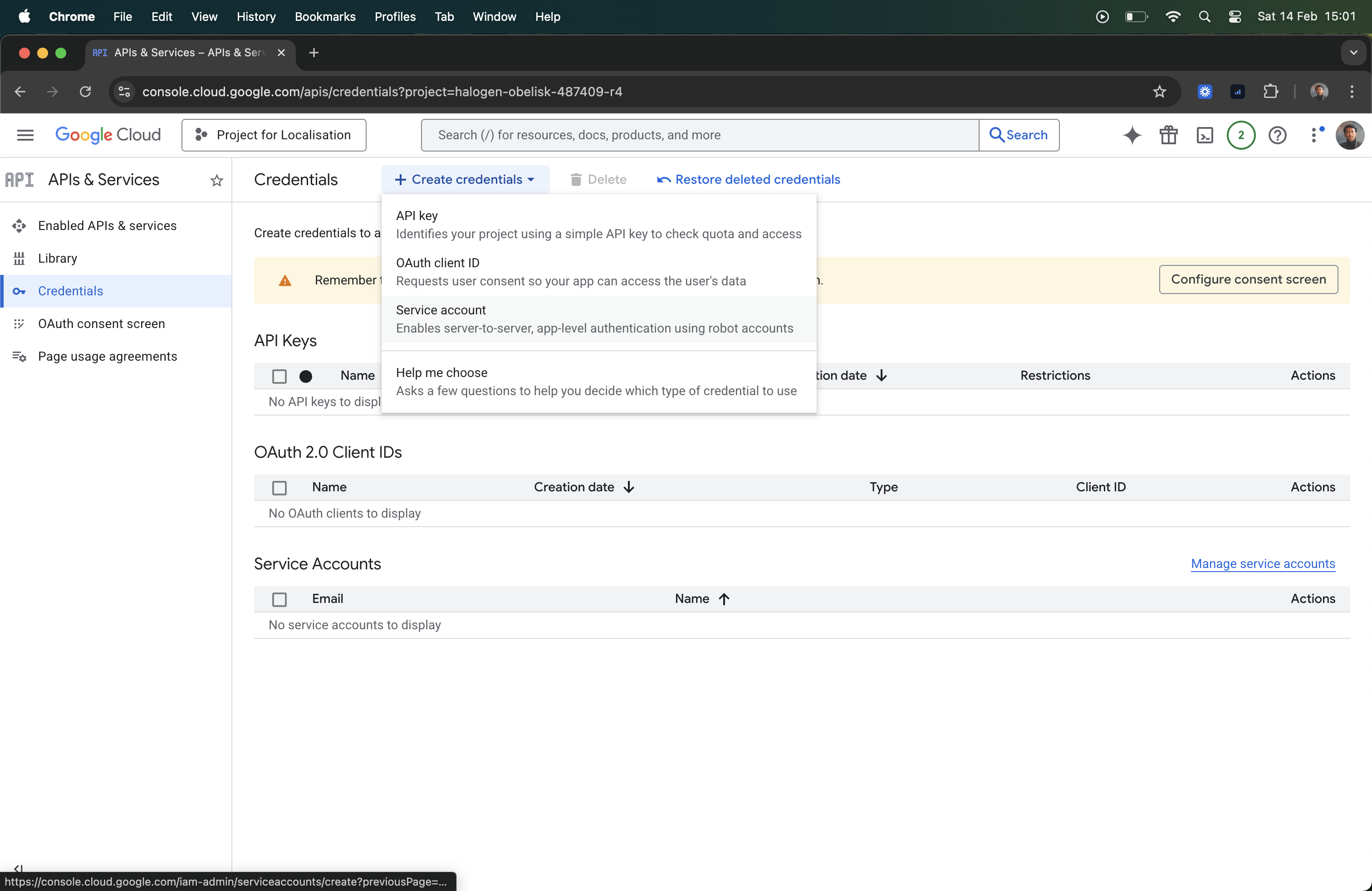
- Click Create Credentials > Service Account.
- Name it (e.g.,
laravel-translator) and click Create.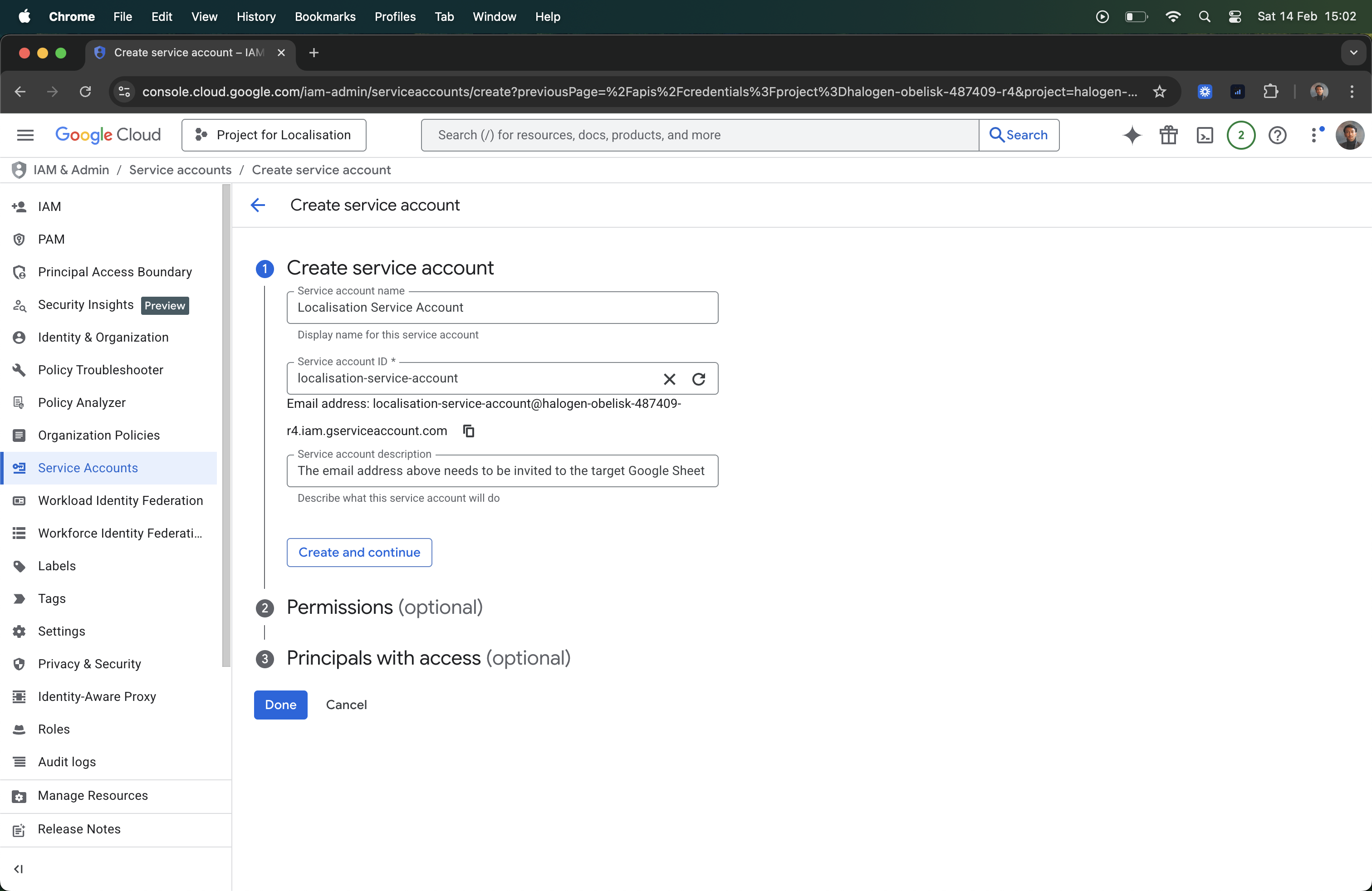
4. Download Service Account Key
- Find your new Service Account in the list and copy its email address (you’ll need this later). Then click on the email to open details.
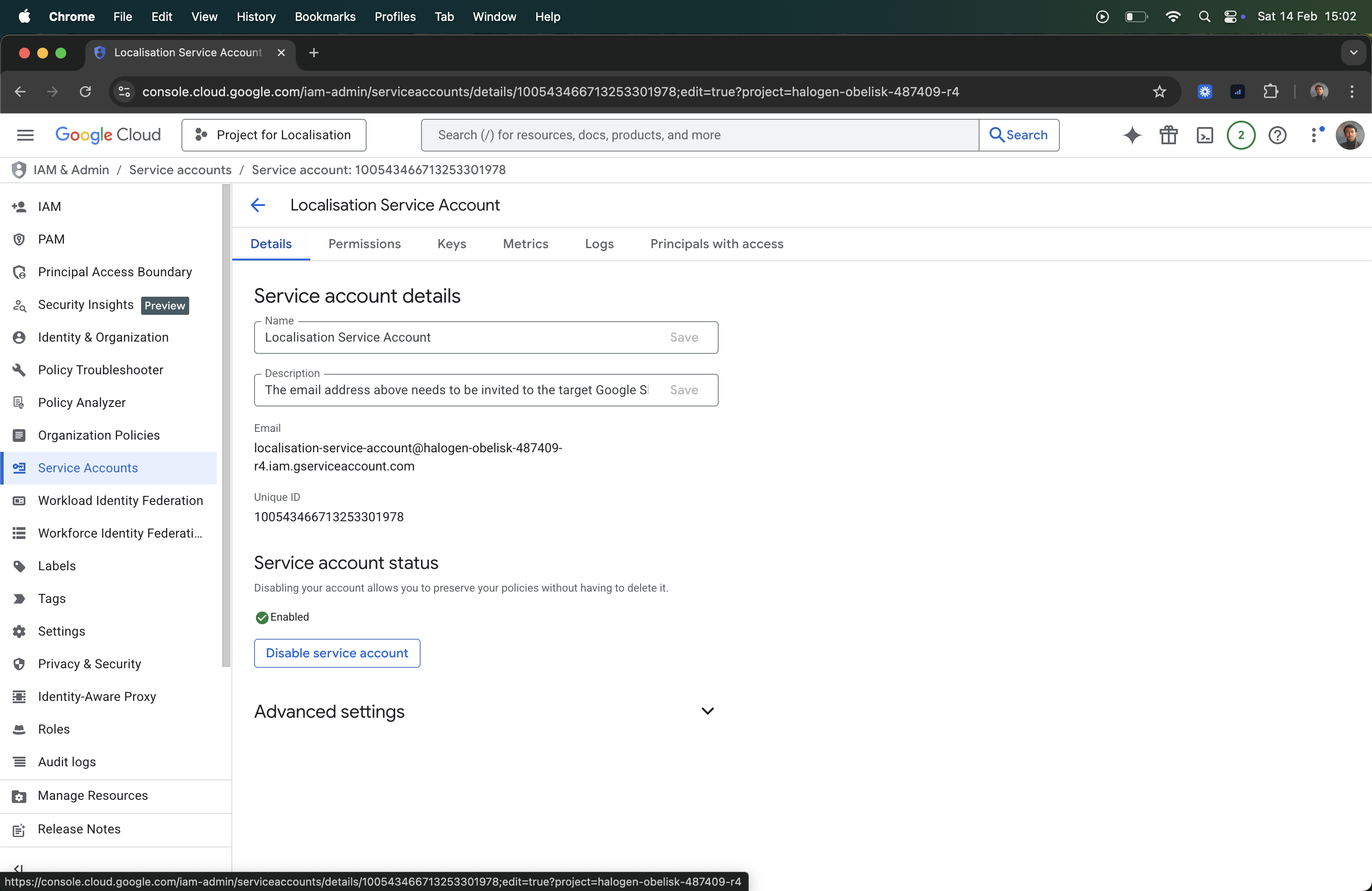
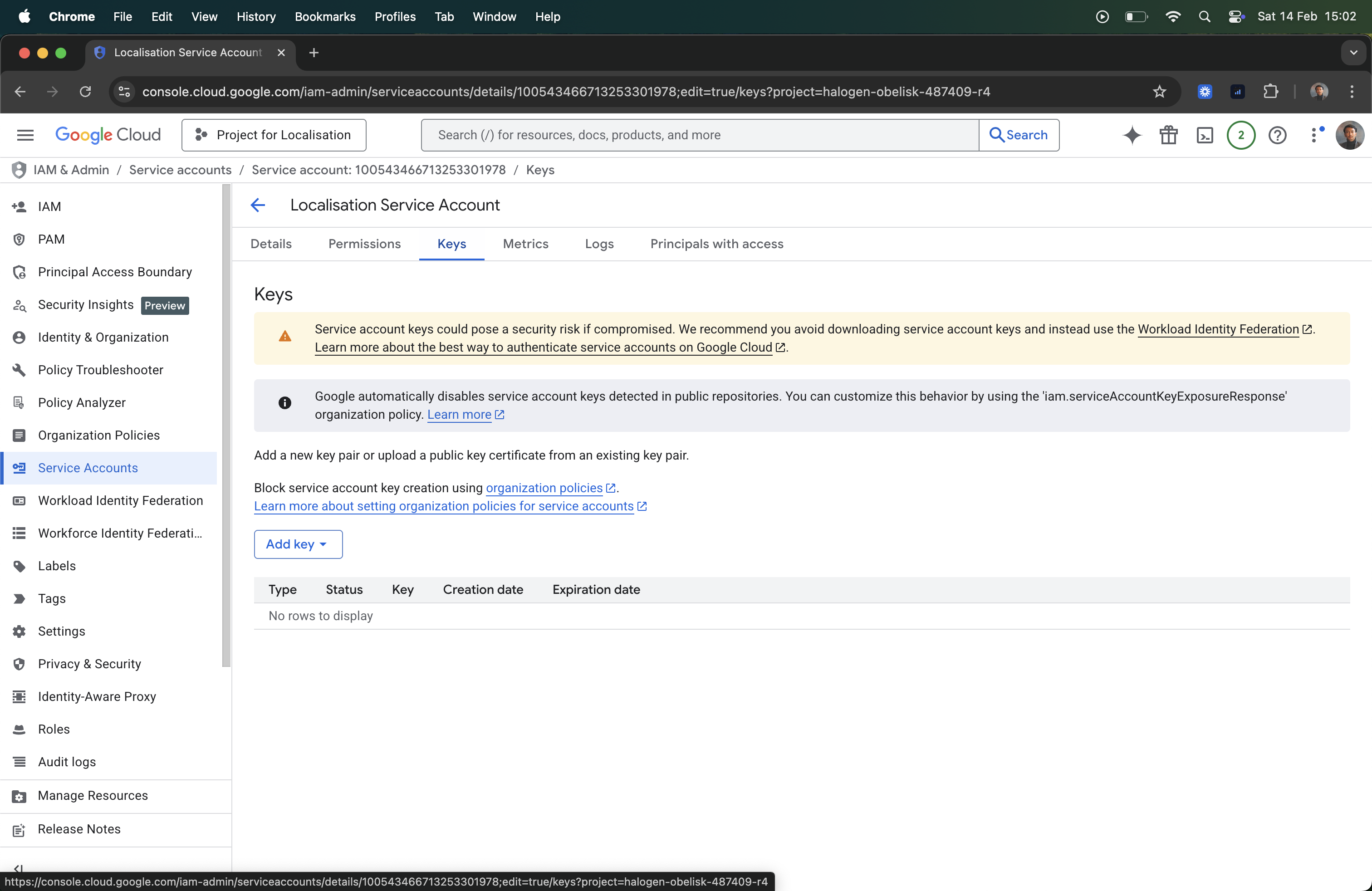
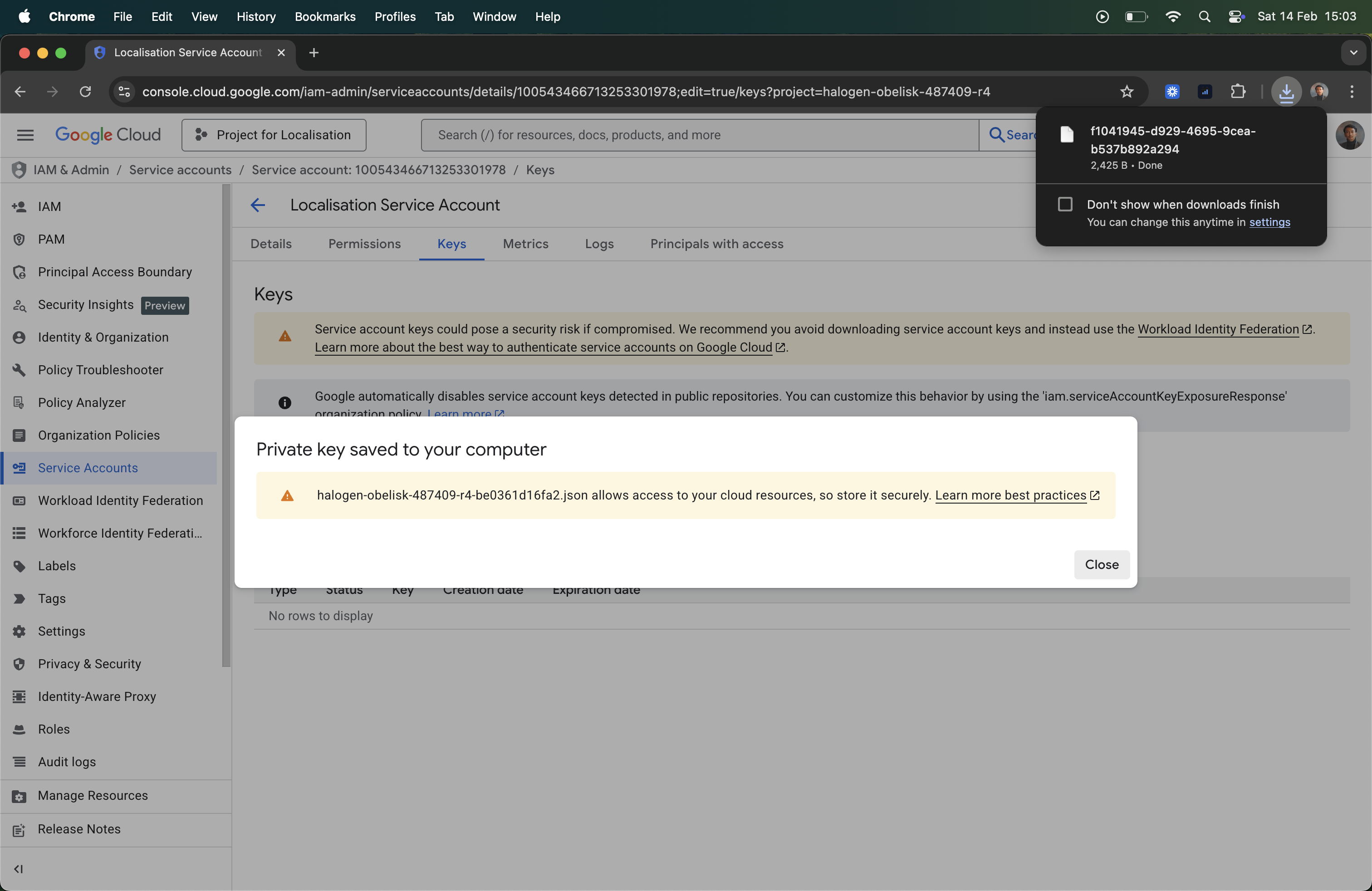
- Go to the Keys tab.
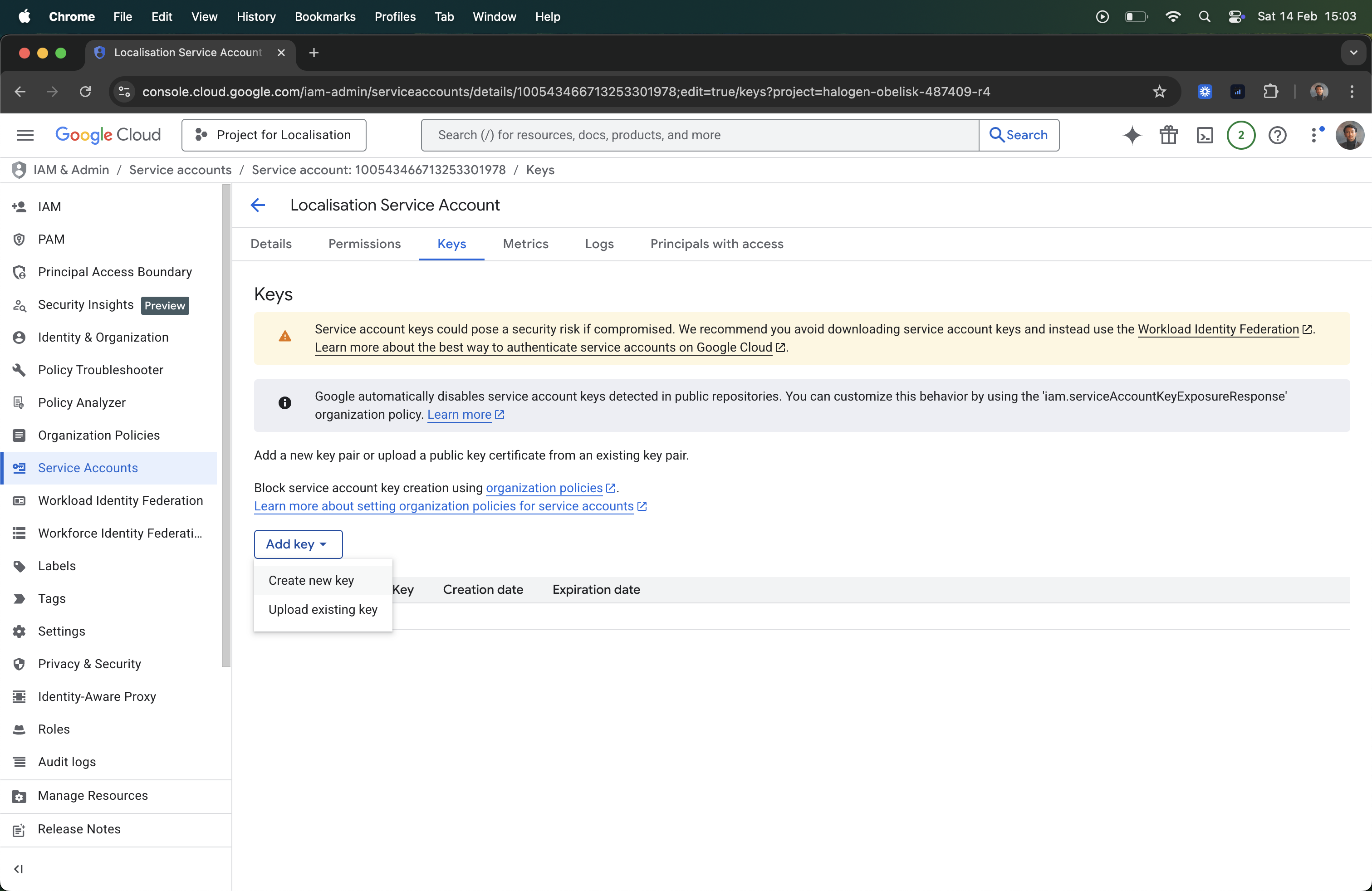
- Click Add Key > Create new key.
- Select JSON and click Create. A file will download.
5. Share Your Google Sheet
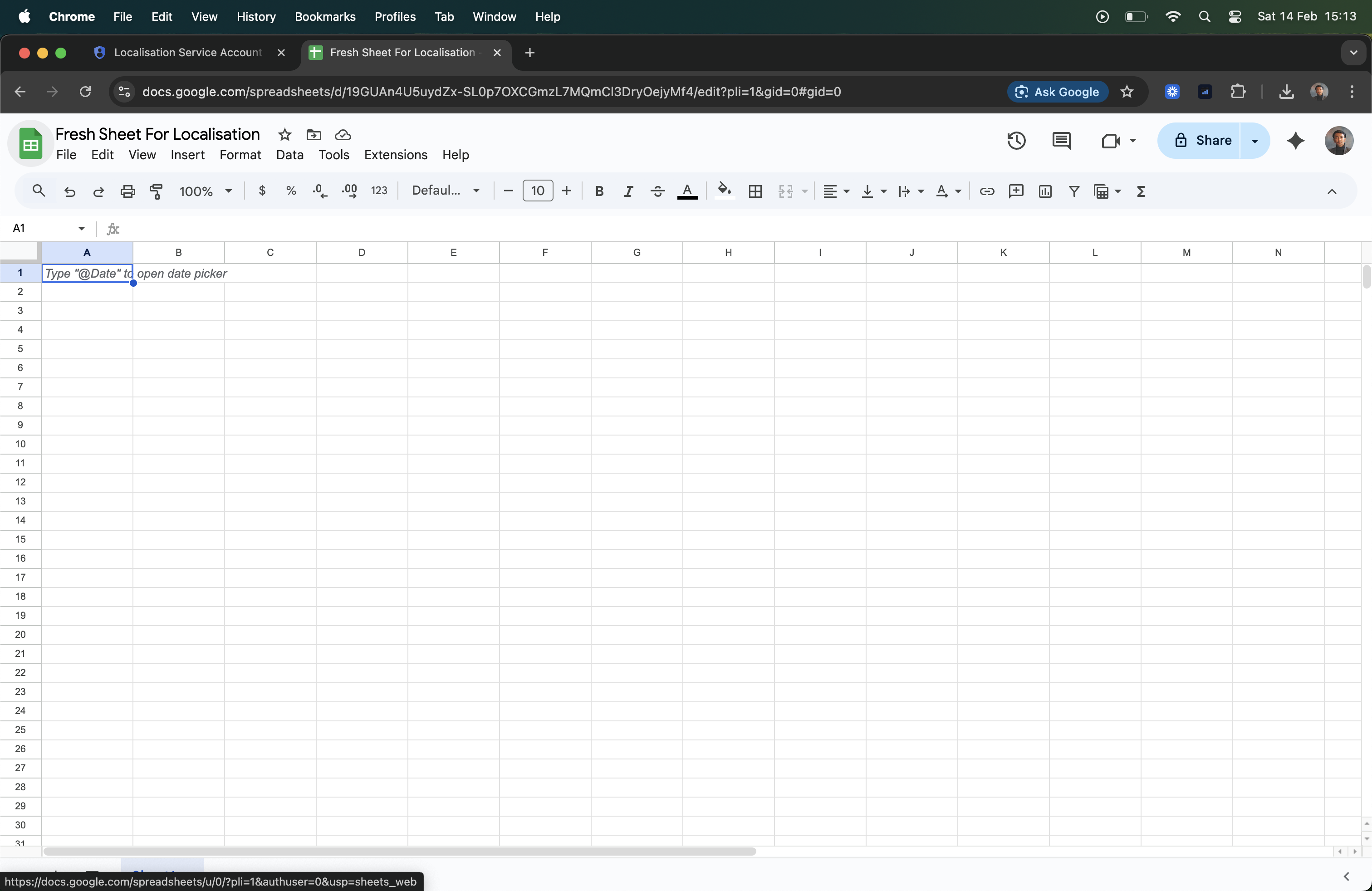
- Create a new Google Sheet.
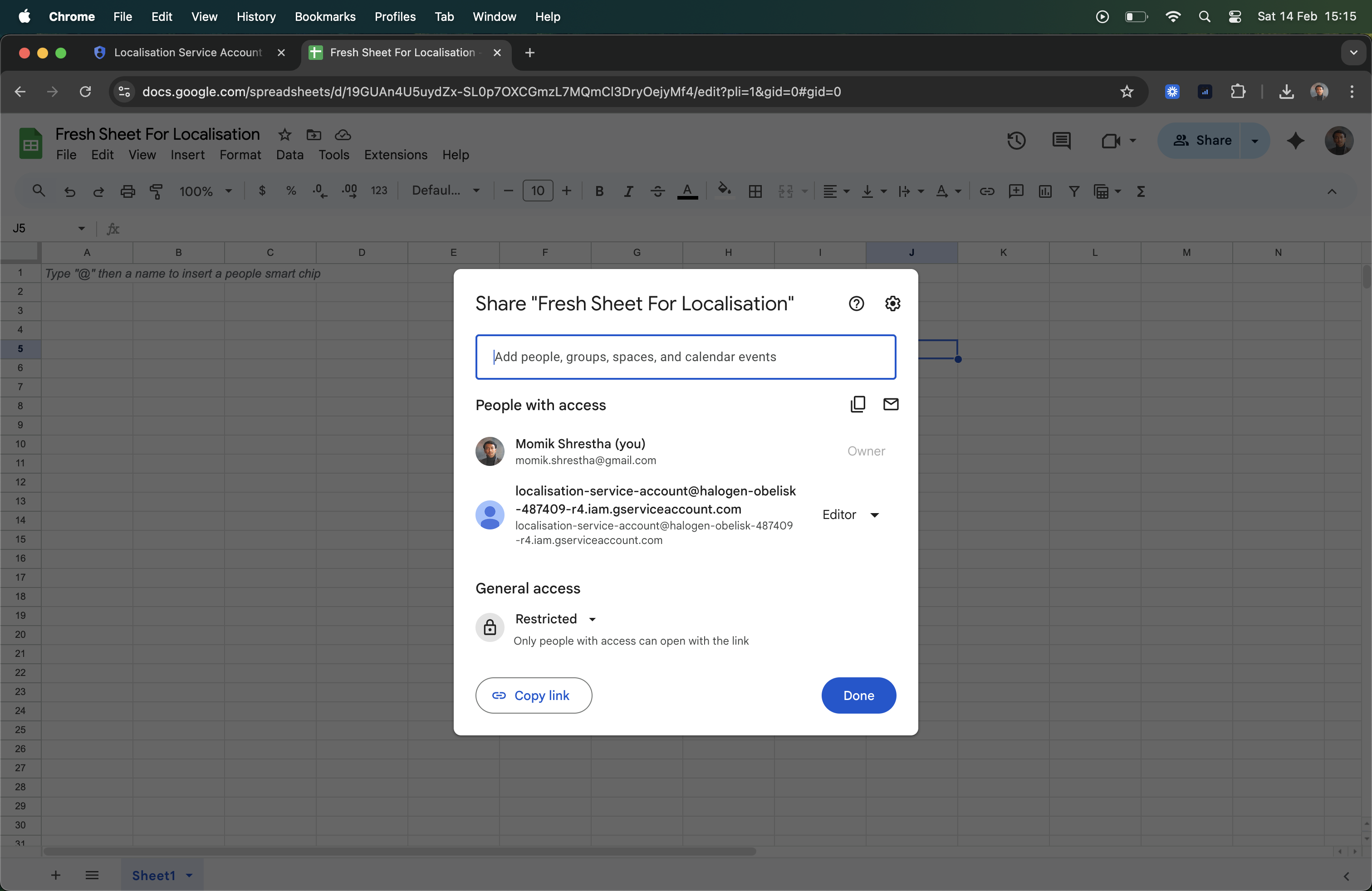
- Click Share and add the Service Account Email you copied earlier as an Editor.
6. Configure Laravel
- Put the downloaded JSON file in your project (e.g.,
storage/app/google-service-account.json). - Get your Spreadsheet ID from the URL.

- Update your
.envfile:GOOGLE_SHEET_I18N_ID=your_spreadsheet_id GOOGLE_APPLICATION_CREDENTIALS=storage/app/google-service-account.json